
Count the whole setup
A compact computer can reduce the space occupied by the machine itself. It does not remove the need for a screen, input devices, cables or a comfortable place to work. Start by drawing the layout you want, then identify which parts you already own. This prevents a small purchase from quietly becoming a much larger project.
Read the exact configuration
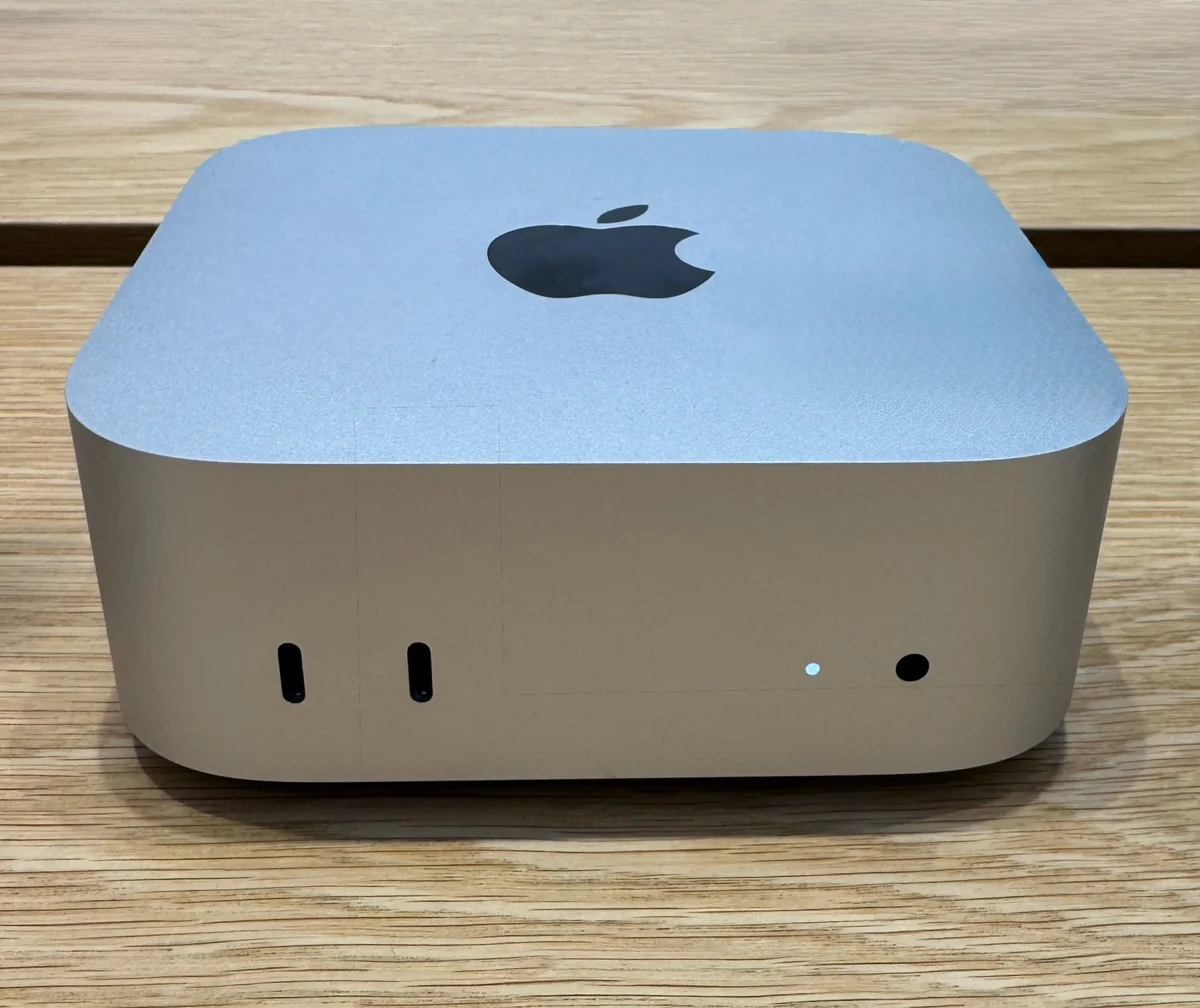
Apple’s M4 Mac mini has a five-inch-square footprint. The product family also includes M4 Pro. Check the exact configuration when comparing ports, memory and storage; a feature of the higher-tier model should not migrate into a description of the base version. Keep your chosen configuration next to any price you record.
List the connections you use together
Consider what stays connected during your busiest task: display, storage, microphone, camera and charging cable. Count the simultaneous connections, not just the number of items you own. If a hub is needed, include it in the layout and check its own requirements. A clear cable path can matter more than a photograph of a nearly empty desk.
Make room for the work
Before replacing anything, try the intended arrangement with your existing tools. Put the screen where you need it, check reach and sight lines, and note what interrupts you. This guide offers planning questions based on product documentation; it does not report benchmark or electrical testing.
Distinguish the machine from the working space
A small enclosure can be attractive when a desk is shared or frequently cleared. Yet the usable area depends on everything that stays around it. Draw the screen, keyboard, pointing device, external storage and any papers at their real approximate sizes. Add the space your hands need. This exercise makes the computer’s contribution visible without assuming its footprint determines the whole arrangement. A move to a smaller desktop may be useful, but a different screen position or fewer seldom-used peripherals might address the same frustration before you replace the computer.
Build a port plan for one busy hour
Choose a demanding but ordinary hour of your work: a video call while opening files from external storage, for example. List every device needed simultaneously and identify its connector. Mark which connections stay in place and which you frequently unplug. For the M4 Mac mini, Apple’s announcement distinguishes its rear Thunderbolt 4 ports from the M4 Pro model’s Thunderbolt 5 ports. Keep that distinction in the plan. A family-level product description is too broad when a particular peripheral or workflow depends on a specific port capability.
Make display compatibility explicit
Write the display’s exact model beside the input you intend to use. Check the computer’s support documentation for the resolution, refresh rate and number of displays in your proposed arrangement. A connector that fits is only the beginning of that check. Include any adapter in the same investigation instead of assuming it preserves every capability. If your work involves frequent reading, try the desired text size and window arrangement on an available display first. The goal is a usable view of your work, rather than a specification that you rarely benefit from.
Plan storage around the files you keep
Divide your files into active projects, reference material and material that must be retained but is rarely opened. Estimate what you already have before choosing a configuration. Then decide how you would move a project to another machine or recover from an accidental deletion. This is an organization exercise, not a promise about any storage product’s reliability. An external drive can introduce its own space, connection and management requirements. Keep those requirements visible in the desktop plan so the supposedly minimal setup does not acquire an unplanned cluster of accessories.
Check software before assuming a hardware upgrade helps
List the applications and extensions that are essential to your work, along with any employer or client requirements. Verify support for the intended operating system and configuration. An advertised AI capability should be evaluated as a particular software task, not treated as an automatic improvement to every application. If the bottleneck is a cumbersome handoff or a missing permission, replacing the computer may not change it. A small sample project using your real tools is more informative than borrowing a performance claim from a different workload or configuration.
Leave room for maintenance
Think about access after the attractive desk photograph has been taken. Can you reach the connections you change, identify each cable and follow the manufacturer’s placement guidance? Is there a clear place for a temporarily connected camera or recorder? Keep the power path appropriate to the desktop; a portable USB power bank should not appear as an implied desktop supply. We removed the unrelated power-bank product link from this story to make that distinction clearer. Travel charging deserves its own evaluation against the portable devices it is actually intended to support.
Make shared use visible in the plan
If someone else will use the same desk, list what changes between your sessions. A different login, a repositioned screen or a temporarily connected device can turn a tidy arrangement into a repeated setup task. Label the connections that should stay in place and agree where shared files belong. Do not use a shared folder as an assumed substitute for a separate backup or an approved workplace storage policy. This planning step is particularly useful when the reason for choosing a compact computer is to make a room serve more than one purpose.
Evaluate the change with a normal work session
Before deciding that the arrangement is complete, run through starting work, joining a call, finding a project, connecting a temporary device and putting everything away. Note the interruptions rather than grading the desk’s appearance. Our assessment is that the M4 Mac mini’s compact format provides a reason to investigate a smaller setup, but it does not answer the surrounding compatibility questions. This guide uses documented product distinctions and a proposed planning method. It makes no claim about tested speed, noise, thermal behavior or the best configuration for every reader.
Expanded setup guidance and removed the unrelated portable power-bank link.
Sources & further reading
- Mac mini M4 announcement ↗Apple · Manufacturer · Published 2024-10-29 · Checked 2026-09-27Supports: M4 Mac mini dimensions and model-specific ports; no benchmark claims reproduced.
Source-based reporting. This article does not represent hands-on testing. Sources checked 2026-09-27.